A front elevation can look simple until the windows do not line up, the roof pitch feels off, and the garage door suddenly looks too short. That is usually the moment people start searching for how to draw house elevations in software instead of sketching by hand. The good news is that elevation drawing is much easier once your software is set up correctly and your floor plan is doing most of the work.
For homeowners, remodelers, and small building professionals, the fastest path is not to draw every exterior view from scratch. It is to build a clean model first, then generate and refine elevations from that model. That approach saves time, reduces dimension errors, and gives you drawings you can actually use for planning, pricing, and permit discussions.
![How to Draw House Elevations in Software]()
 Start with the plan, not the elevation
The biggest mistake beginners make is treating an elevation as a separate drawing. In good home design software, the elevation is tied to your floor plan, wall heights, roof design, window sizes, and door placement. If those basics are wrong, your elevations will be wrong too.
Start by drawing the footprint of the house with accurate wall lengths and wall thicknesses. Add doors, windows, floor levels, and ceiling heights before you spend time styling the exterior. If you are working on a remodel or addition, use field measurements rather than guesses. Even a few inches of error can throw off the proportions of the finished elevation.
Once the floor plan is in place, build the roof carefully. Roof shape affects almost everything people notice on an elevation – ridge height, gable appearance, overhang depth, and the visual balance of the façade. A software tool that lets you define roof pitch numerically is better than trying to eyeball it.
How to draw house elevations in software step by step
The actual process is straightforward when the software supports both 2D and 3D house planning.
1. Set your units and project defaults
Before drawing, choose feet and inches or metric units based on your project requirements. Then set default wall heights, floor thicknesses, roof construction, and dimension preferences. This matters more than it seems. If defaults are wrong, every wall and opening you place may need correction later.
For US residential work, make sure dimensions, notation style, and page sizes match what local builders and plan reviewers expect. Software that supports common residential standards saves cleanup time later.
2. Draw the floor plan accurately
Create the exterior walls first, then interior walls if needed for reference. Place windows and doors in their exact positions, including widths, sill heights, and head heights. Those values determine what will show in each elevation.
If the house has multiple stories, stack the upper floor correctly over the lower level. Misalignment between floors often creates strange-looking elevations that are hard to diagnose until much later.
3. Build the roof and exterior elements
Add the roof type, pitch, eaves, dormers, chimneys, columns, porches, and decks. This is where software starts to outperform hand drafting for many users. Instead of redrawing each exterior view manually, you define the building components once and let the program generate the views.
Be careful with overhangs and fascia settings. Small changes there can noticeably alter the look of the house. If you are aiming for a permit set, these settings also affect dimensions and section relationships.
4. Generate each elevation view
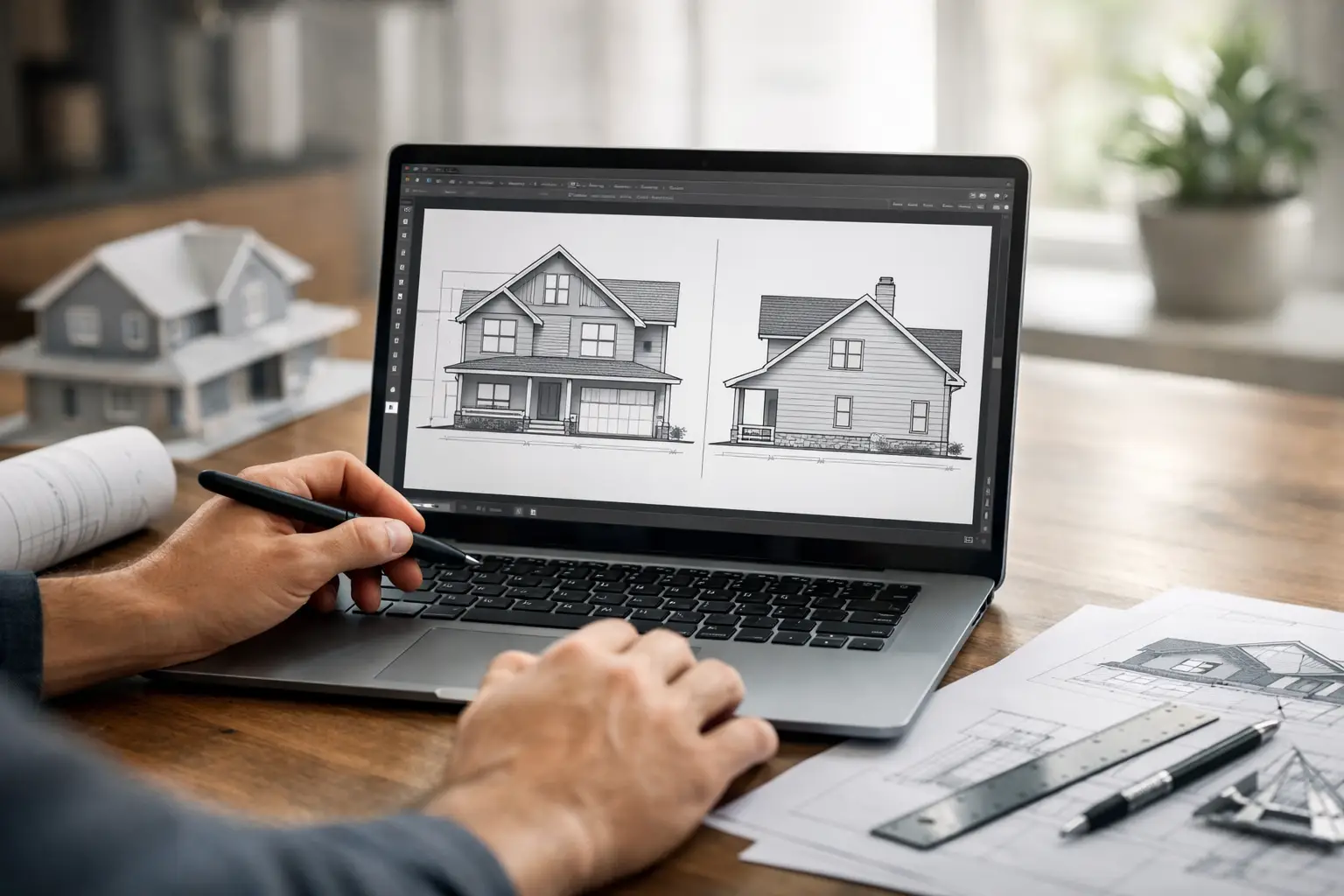
Most architectural home design software lets you switch to front, rear, left, and right elevation views automatically. At this point, you are not starting from a blank screen. You are reviewing a generated projection of the model.
This is the right time to check proportions. Look at window spacing, roof symmetry, plate heights, porch alignment, and grade relationship. If something looks wrong, fix the model rather than patching the elevation with disconnected lines whenever possible.
5. Add dimensions, notes, and material details
An attractive elevation is useful, but a buildable one is better. Add height dimensions, floor level markers, roof pitch notes, opening sizes, and exterior finish labels where needed. Depending on your project, you may also want to show top-of-foundation, ridge height, and overall building height.
For concept work, lighter annotation is usually enough. For contractor pricing or permit review, you typically need more complete labeling. This is where software with construction-document tools becomes much more valuable than a simple visualizer.
Refining elevations so they look professional
A generated elevation is only the starting point. Good results come from editing the presentation and checking the real-world logic behind it.
Use layers and display settings wisely
Clean elevations depend on showing the right information and hiding the rest. Turn off furniture, interior symbols, or background items that clutter the view. Adjust line weights so the building outline reads clearly and trim details do not overpower the main structure.
Some users want highly rendered color elevations. Others need black-and-white permit drawings. Neither is automatically better. It depends on whether you are presenting to a client, communicating with a contractor, or assembling a submission package.
Match the terrain and grade line
A house elevation that floats above grade or sinks unrealistically into the ground is a common giveaway that the drawing was rushed. If your software includes terrain or site tools, use them. Even a basic grade line improves realism and helps avoid foundation misunderstandings.
This matters especially for walkout basements, sloped lots, and additions tied into older homes. The front elevation may look normal while the side elevation reveals a significant grade change. If you ignore that early, the project can become much more expensive than expected.
Keep exterior styles consistent
Trim widths, window head heights, railing styles, and siding breaks should feel intentional. Software makes it easy to test options quickly, but too many mixed styles can produce a confused elevation.
A practical rule is to standardize major elements first, then make exceptions only where they solve a real design problem. That gives you a cleaner drawing and usually a better house.
What beginners should watch out for
If you are new to home design software, the challenge is usually not drawing lines. It is managing the relationship between the model and the drawing output.
One issue is relying too much on manual edits. If you manually adjust an elevation without correcting the underlying plan or 3D model, later changes can break the drawing again. Another issue is incorrect wall and roof settings. A wall height that is off by a few inches may not stand out in plan view, but it becomes obvious in elevation.
Window placement is another common problem. People often center windows by eye instead of dimensioning them properly from wall edges. On a symmetrical façade, small errors become very noticeable. The same goes for roof intersections around porches, garages, and additions.
If your goal is permit-ready output, also check title blocks, scales, text size, and export quality. An elevation may look fine on screen but print poorly if line settings are too light or the sheet setup is wrong.
Choosing software that makes elevation drawing easier
If you are comparing programs, focus less on flashy rendering and more on whether the software supports a complete residential workflow. The best tool for house elevations lets you draw plans, generate elevations automatically, adjust roof geometry precisely, annotate drawings, and export in formats builders and designers can use.
That is where a dedicated home planning program has an advantage over generic drawing software. You want walls that behave like walls, roofs that understand pitch, and windows that carry real dimensions. For many homeowners and contractors, Plan7Architect fits this well because it combines beginner-friendly planning tools with serious elevation, section, and construction drawing features, without forcing users into a subscription model.
There is still a trade-off. Simpler software may be faster to learn but limited when you need detailed documentation. More advanced software gives better control, but it takes longer to master. The right choice depends on whether you are sketching renovation ideas, preparing builder-ready drawings, or producing a full documentation set.
How to draw house elevations in software without wasting time
The fastest method is to make fewer corrections later. Build accurately from the beginning, use object-based tools instead of freehand drafting whenever possible, and let the software generate views from the same model. Then review each elevation like a builder would, not just like a designer would.
Ask practical questions. Does the porch roof clear the window heads? Do the second-floor windows align in a believable way? Is the siding transition placed where it can actually be built? These checks are what turn a nice-looking elevation into a useful one.
If you are planning your own home, remodel, ADU, or addition, do not aim for perfection on the first pass. Aim for a clean model, accurate dimensions, and elevations that improve with each revision. Once the software is working with you instead of against you, the drawing process becomes much faster – and a lot more reliable.
A good elevation should help you make decisions before construction makes them expensive.
Plan your project with Plan7Architect
Plan7Architect Pro 5 for $169.99
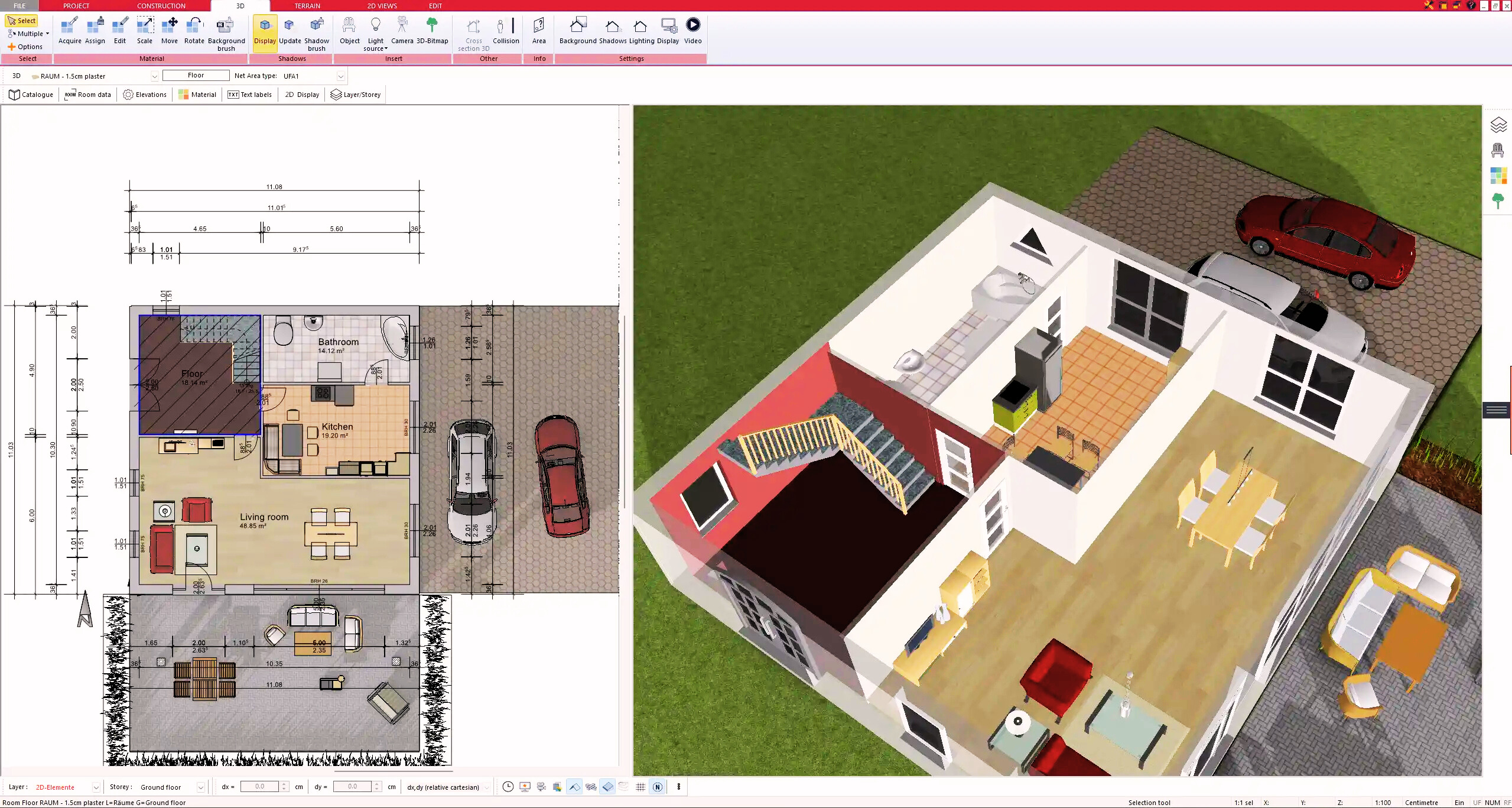
You don’t need any prior experience because the software has been specifically designed for beginners. The planning process is carried out in 5 simple steps:
1. Draw Walls
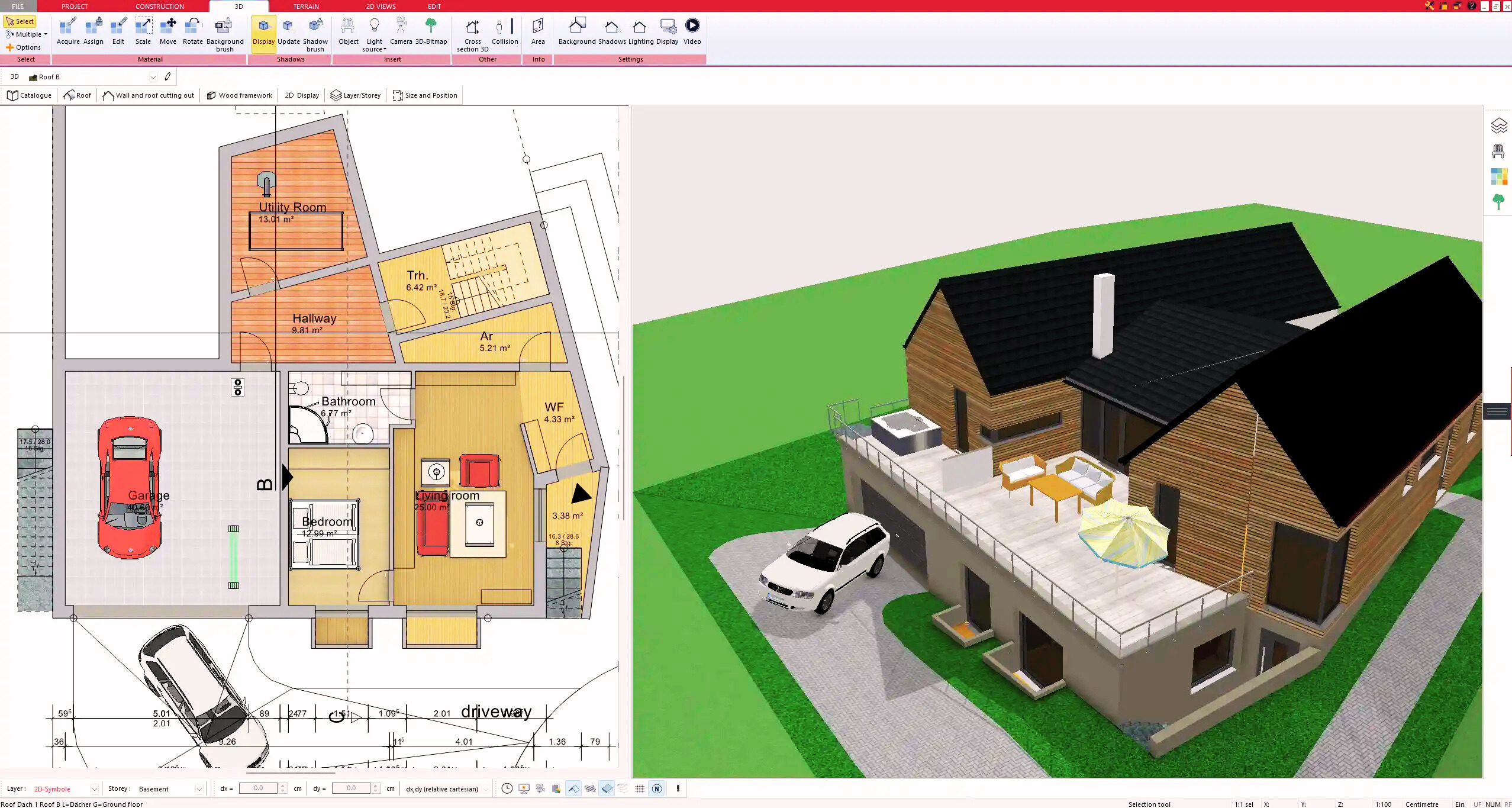
2. Windows & Doors
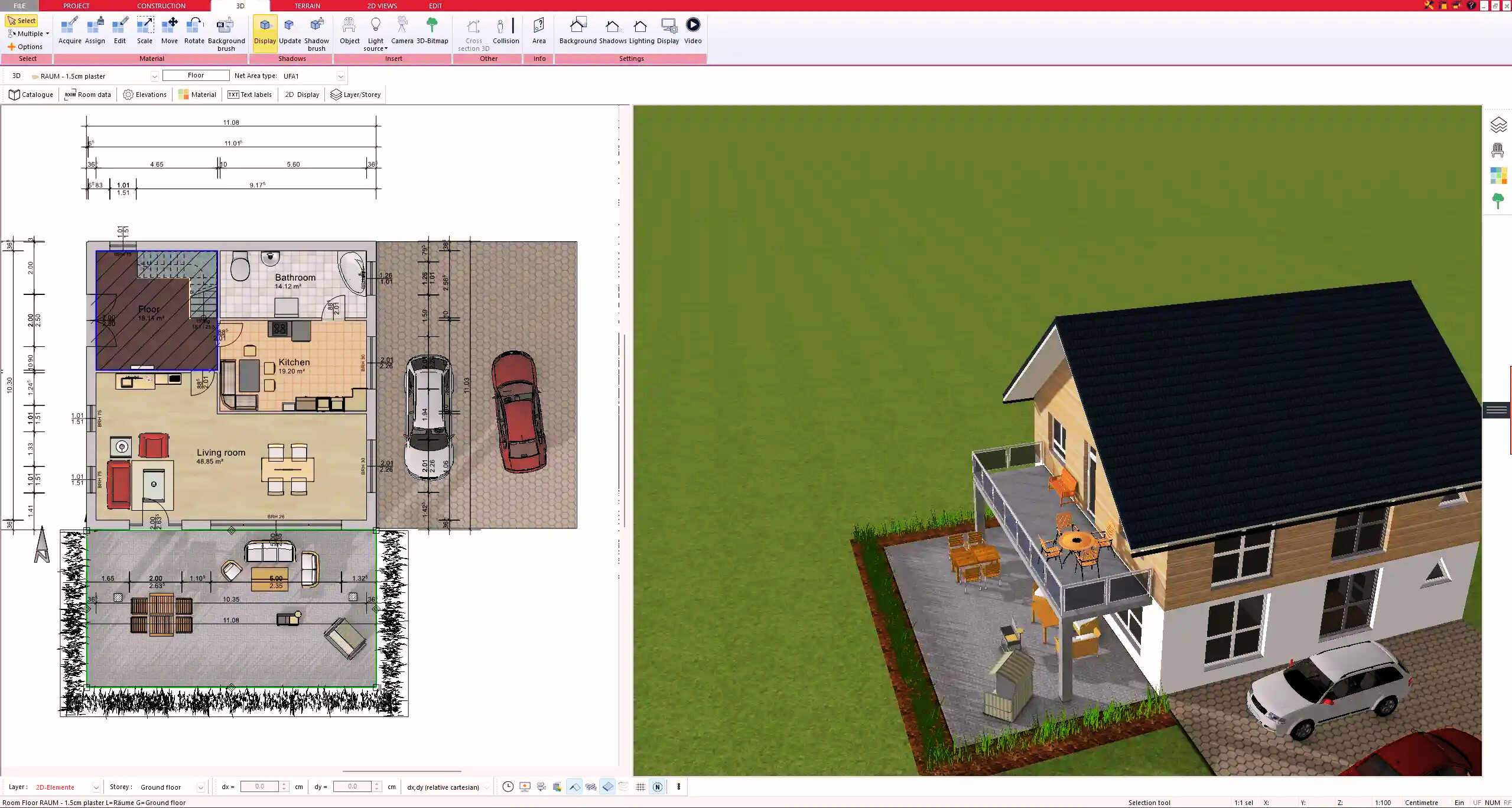
3. Floors & Roof
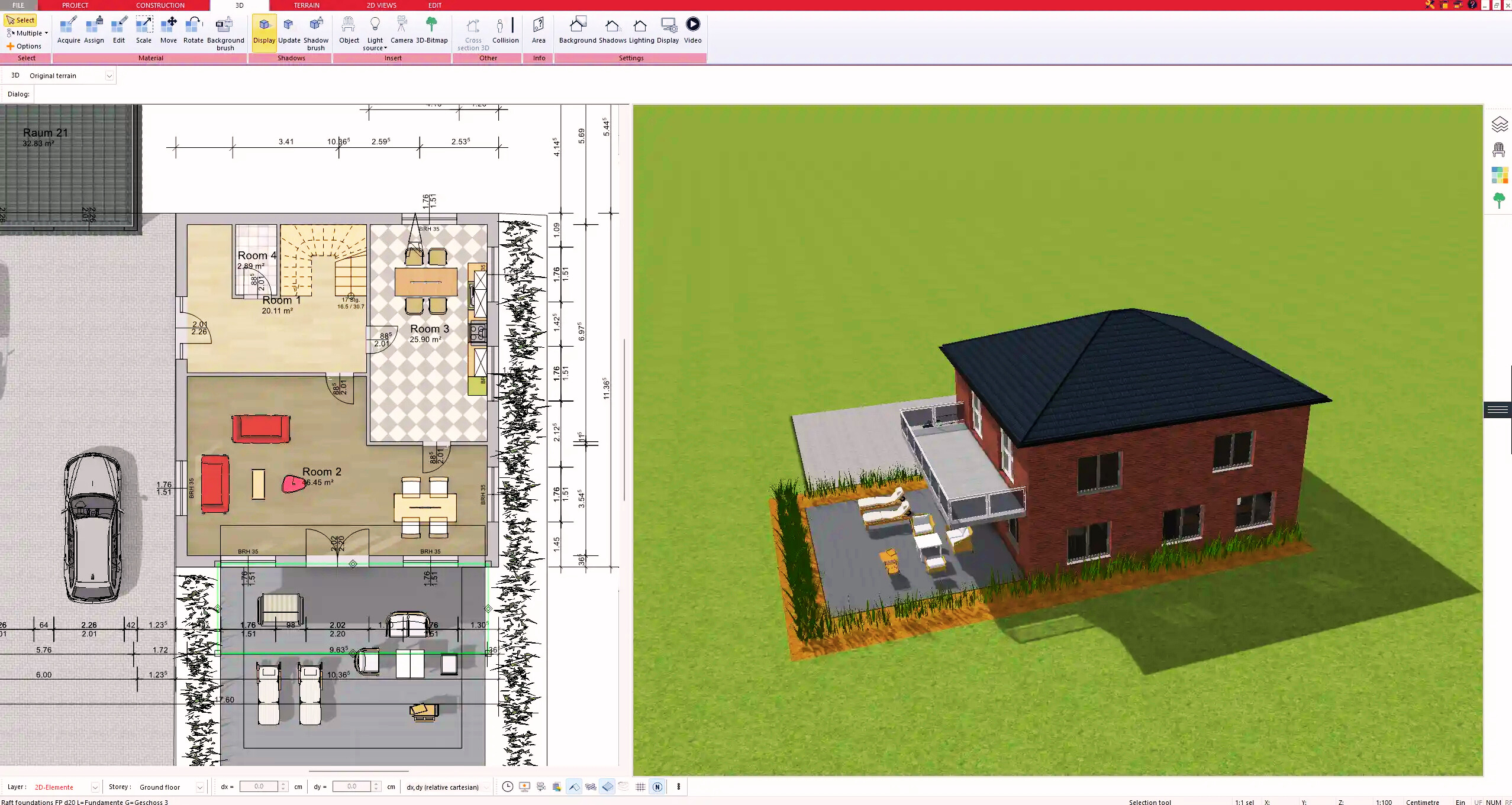
4. Textures & 3D Objects
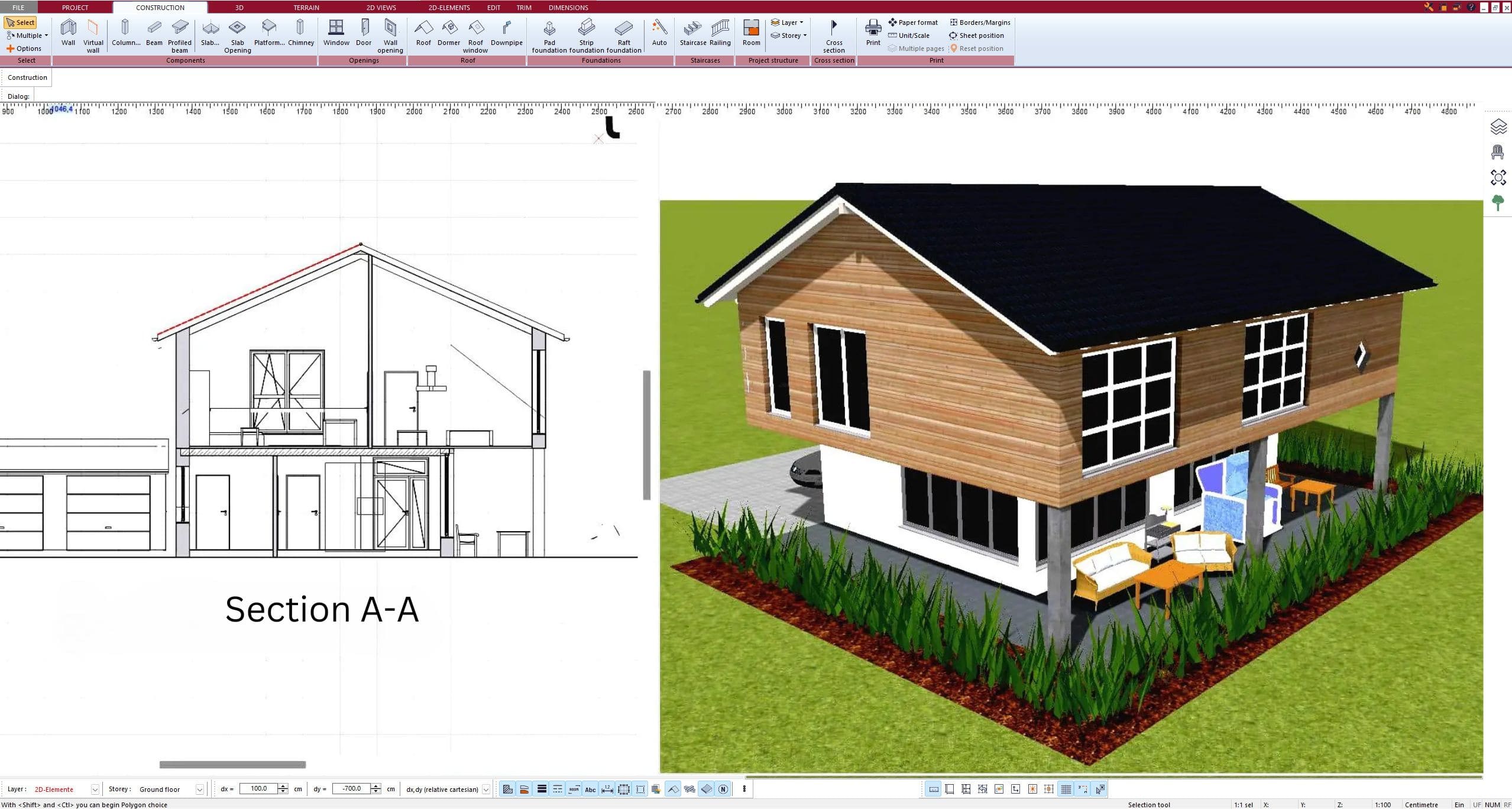
5. Plan for the Building Permit
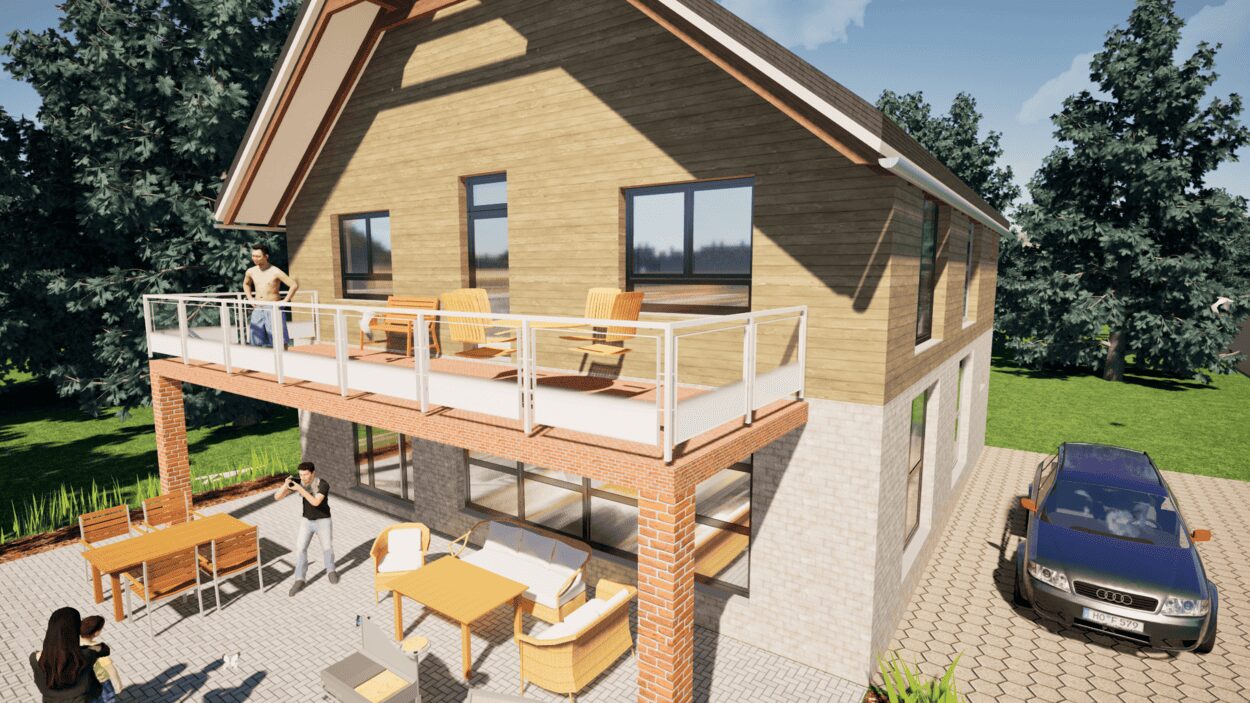
6. Export the Floor Plan as a 3D Model for Twinmotion
- – Compliant with international construction standards
- – Usable on 3 PCs simultaneously
- – Option for consultation with an architect
- – Comprehensive user manual
- – Regular updates
- – Video tutorials
- – Millions of 3D objects available
Why Thousands of Builders Prefer Plan7Architect
Why choose Plan7Architect over other home design tools?