How to Draw a Building Plan with Plan7Architect

To draw a building plan with Plan7Architect, you start by creating a new project and selecting your preferred measurement system, either metric or imperial. Then you draw the exterior walls using the wall tool, add interior walls, insert doors and windows, define ceiling heights and floor structures, and if necessary, add stairs for multiple levels. The software automatically generates elevations, sections, and a 3D model from your floor plan. Finally, you add dimensions and construction details and export or print the finished plan.

In practical terms, the workflow looks like this:

  • Create a new project and define measurement units

  • Draw exterior walls with exact dimensions

  • Add interior walls and adjust wall thickness

  • Insert doors and windows from the library

  • Set story heights and floor structures

  • Add stairs if needed

  • Generate elevations and sections automatically

  • Add dimensions and annotations

  • Export or print your building plan

From my experience, once you understand this basic structure, drawing a complete building plan becomes a logical and repeatable process.

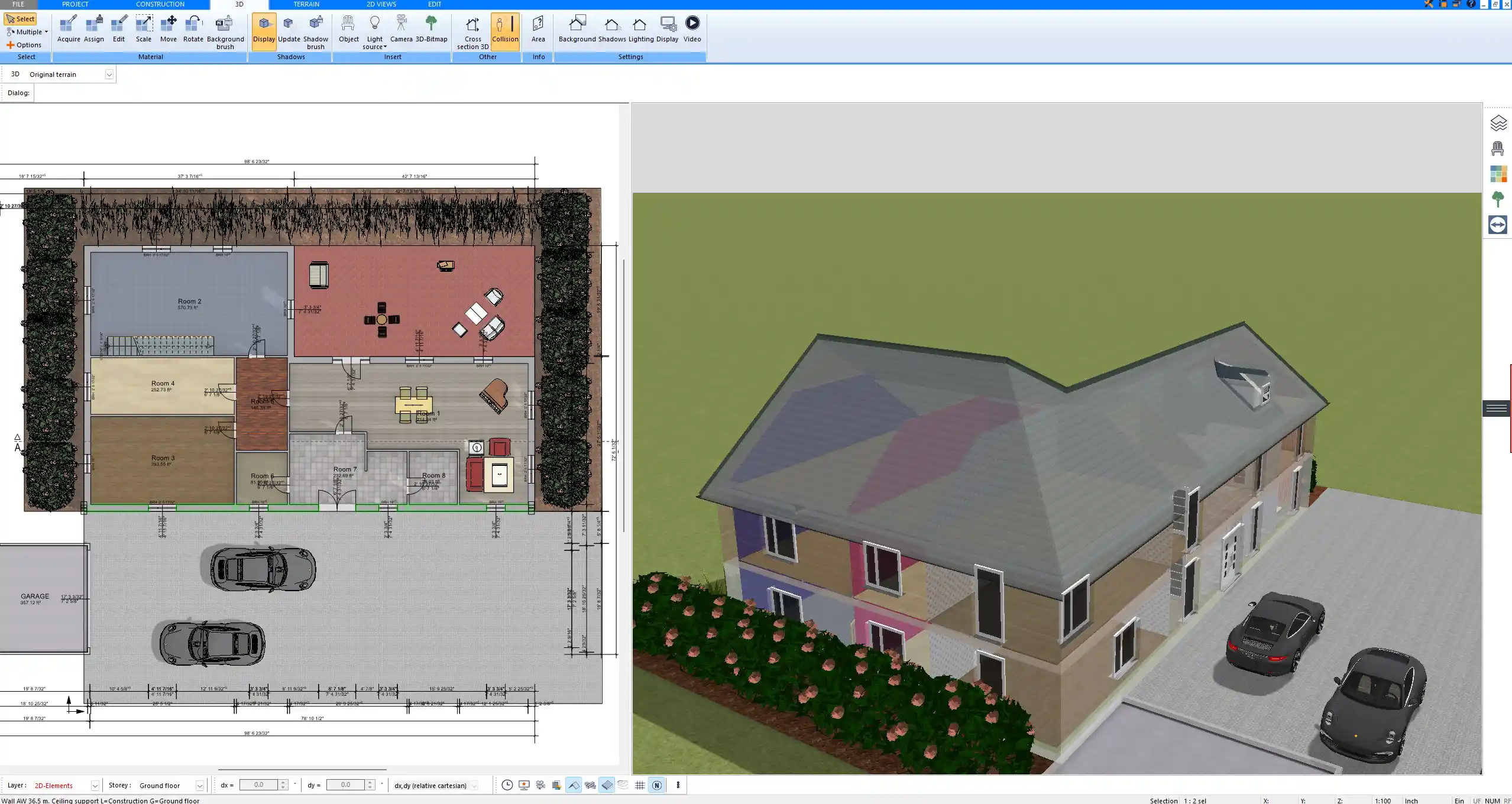
Floor plan created with Plan7Architect showing exterior and interior wall layout with precise dimensions

What Is a Building Plan?

A building plan is more than a simple sketch of rooms. It is a technical representation of a structure that shows dimensions, wall thicknesses, openings, levels, and structural elements. Depending on your goal, a building plan can include:

  • Floor plans

  • Elevations

  • Cross sections

  • Roof plans

  • Foundation layouts

  • Electrical or plumbing layouts

A hand-drawn sketch on grid paper may be enough for early ideas. However, contractors, engineers, and authorities usually require precise drawings with exact dimensions and clearly defined structural components.

Plan7Architect allows you to create detailed construction drawings, not just conceptual layouts. You can work with real wall thicknesses, define floor slabs, adjust ceiling heights, and generate technical views that are typically required for professional projects.

Step-by-Step: Drawing a Building Plan in Plan7Architect

1. Start a New Project

When you open Plan7Architect, you begin by creating a new project. You can either choose a template or start from scratch.

The first important decision is selecting your measurement system. Plan7Architect allows you to work with metric units such as meters and centimeters or with imperial units such as feet and inches. You can switch between systems at any time, which makes the software suitable for users worldwide.

At this stage, you also define:

  • Default wall thickness

  • Story height

  • Grid settings

  • Snap options

Typical residential story heights might be around 2.4 meters or 8 feet, but you can define any custom value according to your project requirements.

Tip:
Before drawing walls, set your default wall thickness for exterior and interior walls. This ensures consistency throughout the project.

2. Draw Exterior Walls

The exterior walls define the footprint of your building. Select the wall tool and click to start drawing. You can either draw freely or enter exact dimensions directly.

In my workflow, I prefer entering precise dimensions immediately. For example, if the building is 10 meters by 8 meters or 32 feet by 26 feet, I type these values directly instead of adjusting manually.

Important aspects when drawing exterior walls:

  • Define wall thickness, for example 30 centimeters or 12 inches for structural walls

  • Use snapping to ensure clean connections

  • Close the wall loop completely

If the exterior wall loop is not fully closed, the room detection and automatic area calculation will not function correctly.

Element Typical Example Value
Exterior wall thickness 25 to 30 cm or 10 to 12 in
Single-story height 2.4 to 2.8 m or 8 to 9 ft
Slab thickness 15 to 20 cm or 6 to 8 in

These values vary by region and building standard, but they provide a common starting point.

3. Add Interior Walls

After the building outline is complete, you define the room layout by inserting interior walls.

Select the interior wall tool and draw partitions according to your floor plan concept. Interior wall thickness is usually smaller, for example 10 to 15 centimeters or 4 to 6 inches.

Plan7Architect provides interactive dimension tools. I recommend activating both interactive dimensions and wall segment dimensions. This allows you to:

  • Enter exact distances between walls

  • Adjust room sizes precisely

  • Align walls accurately

You can define whether the reference line is inside, center, or outside of the wall. This is particularly important when you want interior dimensions to remain exact regardless of wall thickness.

Note:
If you design based on interior room dimensions, activate wall segment dimensions and define distances between interior faces of walls.

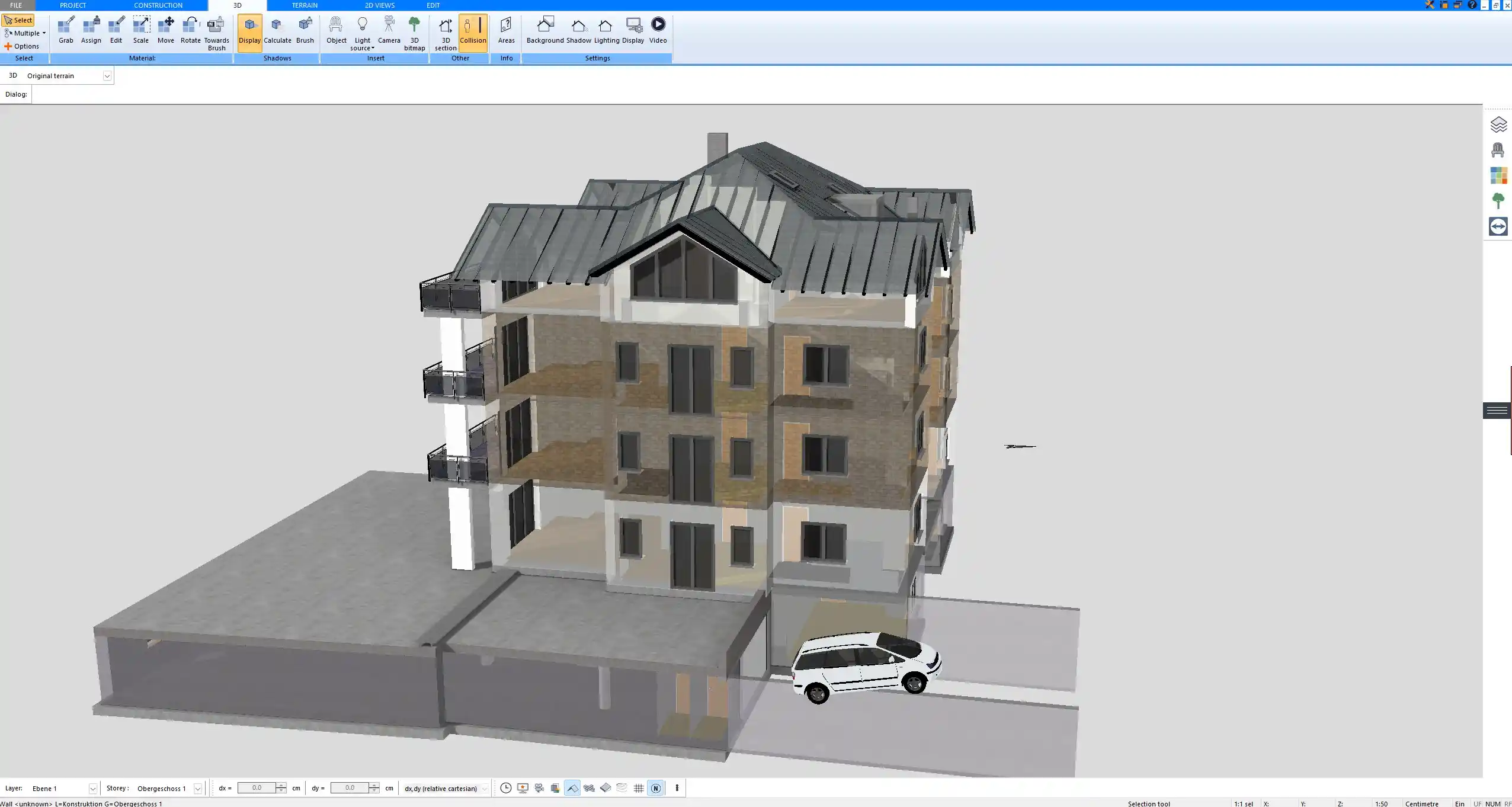
Automatic 3D model generated from the floor plan inside Plan7Architect

4. Insert Doors and Windows

Doors and windows are inserted via drag and drop from the object library.

You can:

  • Choose single or double doors

  • Select sliding doors

  • Insert standard or custom-sized windows

  • Adjust opening direction

  • Define sill height

Each opening can be resized manually. You are not limited to preset dimensions.

For example, you may define:

  • Window width of 1.2 meters or 4 feet

  • Door height of 2.1 meters or 7 feet

Once inserted, doors and windows automatically cut into the wall and appear in elevations and 3D views.

From experience, it is efficient to complete the basic room layout first and then add all openings in one step.

5. Define Floor Structure and Ceiling Heights

After walls and openings are placed, define the structural setup of each story.

You can configure:

  • Story height

  • Floor slab thickness

  • Ceiling construction

  • Multiple levels

  • Basement levels

If you are building a two-story house, simply add another level and copy or redesign the floor plan. Ceiling heights can be adjusted individually per story.

For example:

  • Ground floor: 2.6 meters or 8.5 feet

  • Upper floor: 2.4 meters or 8 feet

These values depend on local building practices.

Plan7Architect automatically updates the 3D model and elevations when you modify story heights.

6. Add Stairs If Multi-Level

If your building includes multiple levels, you insert stairs using the stair tool or wizard.

You define:

  • Total floor height

  • Number of steps

  • Step depth and rise

  • Stair width

The software calculates the step distribution automatically. You can adjust parameters to match your local requirements.

In practice, I recommend placing stairs early enough in the design process, because they affect both floor plans and circulation.

7. Generate Elevations and Sections

One of the strongest advantages of Plan7Architect is the automatic generation of elevations and sections.

Once your floor plan is complete, you can:

  • Create front elevation

  • Create side elevations

  • Insert section lines

  • Generate cross sections

These views are derived directly from the 3D model. When you change a wall or window in the floor plan, elevations and sections update automatically.

You can also add dimensions to these views and adjust scale for printing.

Complete construction drawing prepared and exported using Plan7Architect

8. Add Dimensions and Construction Details

Technical drawings require clear dimensions and annotations.

Plan7Architect allows you to:

  • Add automatic room dimensions

  • Dimension wall segments

  • Insert manual dimension lines

  • Label rooms

  • Add text notes

For construction drawings, it is important to show:

  • Overall building dimensions

  • Room dimensions

  • Wall thickness

  • Door and window sizes

Use consistent dimension placement and avoid overlapping lines to maintain clarity.

Tip:
Before printing, switch to layout mode and check line thickness and scale to ensure the drawing remains readable.

9. View in 3D

At any time, you can switch to the 3D view.

This allows you to:

  • Walk through the building

  • Inspect proportions

  • Adjust roof types

  • Modify materials

  • Analyze facade appearance

You can choose between gable roof, hip roof, flat roof, and other types. Roof pitch and overhang can be adjusted numerically.

Working in 3D while refining the 2D floor plan helps detect proportion issues early.

10. Export or Print the Building Plan

When your plan is complete, you prepare it for output.

You can:

  • Export as PDF

  • Export as DWG or DXF

  • Print to scale

  • Create structured layout sheets

For professional collaboration, exporting as DWG or DXF allows engineers or architects to continue working in their preferred CAD software.

Before final printing, verify:

  • Drawing scale

  • Dimension visibility

  • Line thickness

  • Page format

A properly prepared output ensures your building plan is usable for construction discussions or submissions.

Can Beginners Draw a Building Plan with Plan7Architect?

Plan7Architect is not a simplified drawing game. It is a professional planning tool with a structured workflow. However, beginners can learn it.

From experience, most users become comfortable after watching one to two hours of tutorials and practicing with a small example project.

Learning factors include:

  • Understanding wall logic

  • Working with dimensions

  • Managing levels

  • Generating views

The software provides:

  • Video tutorials

  • A support forum

  • Email support

  • User communities

With consistent practice, even users without prior CAD experience can produce detailed building plans.

What Type of Building Plans Can You Create?

Plan7Architect is suitable for a wide range of projects:

  • Residential homes

  • Additions and extensions

  • Garages

  • Cabins and small houses

  • Barn-style buildings

  • Remodeling layouts

  • Roof redesign

  • Interior layout planning

  • Electrical layouts

  • Plumbing layouts

Because you can define real construction parameters, the software supports both conceptual planning and detailed technical drawings.

Metric and Imperial Measurements

Plan7Architect allows you to switch between metric and imperial measurement systems at any time. Dimensions automatically display according to the selected system. This makes the software suitable for users in the United States, Canada, Australia, the United Kingdom, Europe, and other regions.

There is no need to convert manually. All dimension entries and outputs follow your selected unit system.

Common Mistakes When Drawing a Building Plan

Several typical mistakes occur during the planning process:

  • Ignoring wall thickness at the beginning

  • Drawing without entering exact dimensions

  • Forgetting to close exterior wall loops

  • Not planning stair placement early

  • Printing without verifying scale

Avoiding these mistakes ensures a clean and technically correct building plan.

How Long Does It Take to Create a Building Plan?

The time required depends on complexity.

  • Simple rectangular layout: less than one hour

  • Medium-sized residential building: several hours

  • Detailed construction set with elevations and sections: longer, depending on level of detail

Because elevations and sections are generated automatically, the overall time is significantly reduced compared to manual drafting.

Why Use Plan7Architect Instead of Sketching by Hand?

Hand sketches are useful for early ideas, but they have limitations.

Plan7Architect provides:

  • Precise dimensions

  • Automatic elevation and section generation

  • Immediate 3D visualization

  • Easy corrections

  • Professional export formats

If you change a wall location in a hand sketch, you must redraw everything. In Plan7Architect, related views update automatically.

This combination of precision, flexibility, and automation makes it possible to create professional building plans efficiently while maintaining full control over every detail.

Plan your project with Plan7Architect

Plan7Architect Pro

Plan7Architect Pro 5 for $109.99

You don’t need any prior experience because the software has been specifically designed for beginners. The planning process is carried out in 5 simple steps:

1. Draw Walls

Create your 2D floor plan by accurately drawing and adjusting rooms and walls for your home design.

2. Windows & Doors

Optimize your space layout with perfectly fitting door and window elements.

3. Floors & Roof

Visualize different levels and roof types for your home design.

4. Textures & 3D Objects

Choose materials and textures to customize floors, walls, and 3D objects individually for a realistic representation of your design.

5. Plan for the Building Permit

Sections and views for the building application can be created with Plan7Architect (1)
Create professional construction drawings with elevations, sections, and complete plan compilations.

6. Export the Floor Plan as a 3D Model for Twinmotion

Visualize your project with cutting-edge 3D technology and create high-quality image renderings and videos using Twinmotion by Epic Games.


  • – Compliant with international construction standards
  • – Usable on 3 PCs simultaneously
  • – Option for consultation with an architect
  • – Comprehensive user manual
  • – Regular updates
  • – Video tutorials
  • – Millions of 3D objects available

Why Thousands of Builders Prefer Plan7Architect

Why choose Plan7Architect over other home design tools?

14-Day Money-Back Guarantee
No questions asked. Just email us within 14 days if you’re not satisfied.
One-time payment – no subscription
Own the software forever. No hidden costs. No monthly fees. Updates are optional.
Based on $2,500 professional architecture software
Plan7Architect is an optimized version — used by professionals and private users alike.
Supports international building standards
Adaptable to US, UK, Canadian, Australian, and European requirements.
Works offline – use on up to 3 devices
No internet required. Install on up to 3 computers – ideal for home and office use.
Metric & imperial units
Switch freely between feet/inches or meters/centimeters — perfect for global use.
++
All key export/import formats included
DWG, DXF, OBJ, 3DS, STL, PDF, image export/import, and SketchUp import — for smooth collaboration.
ii
Create real building permit documents
Generate floor plans, elevations, cross-sections, and full construction drawings.
Supports wood framing for walls and roofs
Design wall and roof structures, gables, dormers, and freely constructed wood frameworks.
Easy learning curve with full support
Includes video tutorials, ticket system, detailed PDF manual, sample projects, and access to our customer forum.
Excellent verified reviews
Top ratings on Trusted Shops and Amazon.
Ongoing development – 3–4 updates per year
Always improving, with a modern 3D engine and regular feature upgrades.

Watch how a complete house is planned from start to finish – in under 25 minutes

Detailed House Planning (25 Min)

Small Home Planning Demo (12 Min)

The 3 Plan7Architects

Sale!
Plan7Architect Pro
Original price was: $259.99.Current price is: $109.99.

Verified Customer Reviews

Verified Customer Reviews

Trusted Shops:

Home » Building Plan Wiki » How to Draw a Building Plan with Plan7Architect
Youtube
Select your currency