


Your 3D model as a photorealistic AI rendering
Vision AI turns your Plan7Architect design into a realistic image in seconds – directly in the program, without exporting and without a separate rendering tool.
From your model to a finished image in three steps
Design your house
Plan walls, roof, windows and furniture in Plan7Architect Pro 6.0 as usual.
Start Vision AI
Connect your Google account once, choose the view and describe the look you want: materials, time of day, surroundings.
Get your rendering
The AI creates a realistic image of your design that you can save and present right away.
See Vision AI in action
Video coming soonWe will show you step by step how to create AI renderings with Vision AI.
Real examples made from Plan7Architect models
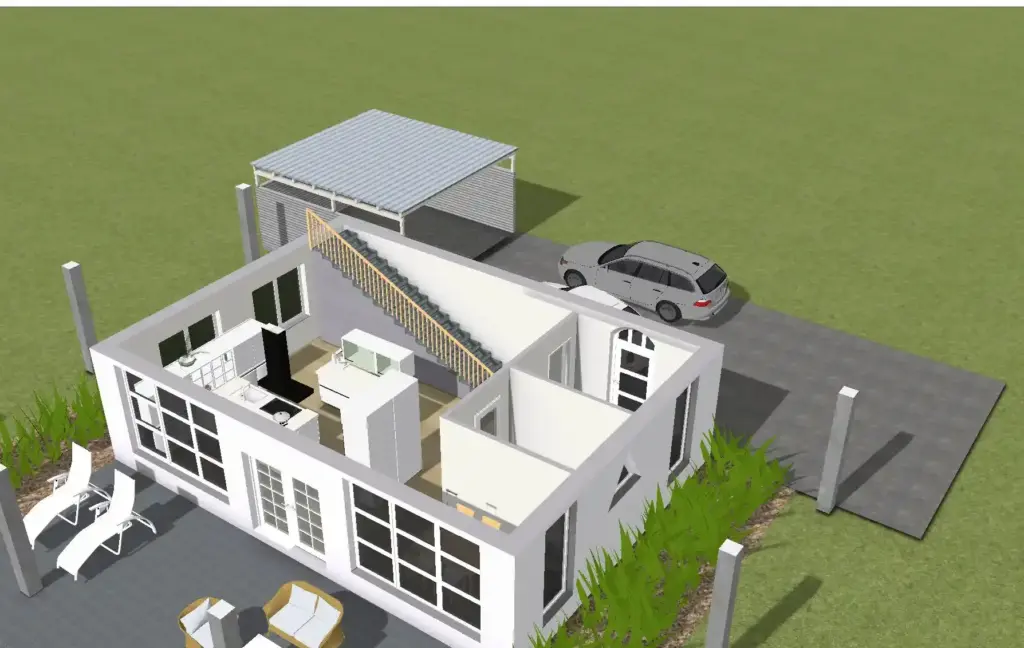
On the left the original 3D view from Plan7Architect, on the right the AI rendering. The design stays the same – only the image becomes realistic.




More examples: AI rendering gallery
Try different materials and moods
Change the facade, roof or lighting with a short description and compare the variants side by side – before anything is built.


Powered by Nano Banana 2 and Nano Banana Pro
Vision AI uses the same image models as our AI renderings. The results you see on this page show what you can expect.
Nano Banana 2
Quick results for trying out ideas, materials and variants.
Nano Banana Pro
Maximum detail and realism for presentations and final images.
- Exterior views and gardens
- Interior rooms like kitchen, living room, bathroom
- Presentation floor plans and site plans
- Day, dusk and night lighting
- Materials and colors by text description
- Built directly into Plan7Architect Pro 6.0
What you pay for
Vision AI add-on $99.99
You receive a new Plan7Architect Pro 6.0 license key with Vision AI activated. You switch to the new key once – see the steps below.
Renderings Google credits
Each rendering is created by Google’s AI and costs credits. You connect your own Google account and add a payment method there. Google then charges the credits automatically for every image you create.
How to activate your new license key
You only need to do this once. Afterwards Vision AI is available in Plan7Architect Pro 6.0.
- Open Plan7Architect and click the Info/Help tab at the top.
- Click License Management.
- Click the Activate / Deactivate button.
- Click Release License and confirm the message with Yes.
- Enter your new license key, click Activate and then Continue.
- Close Plan7Architect and open it again – now Vision AI is active.
Requirement: Vision AI is an add-on for Plan7Architect Pro 6.0. It does not work with older versions. Customers with an older Pro version can upgrade to Pro 6.0 first.
Show your design the way it will look
Add Vision AI to Plan7Architect Pro 6.0 and create AI renderings directly from your model.